How to plan a long-distance movie night
Pick a film you can both play, send the invitation early, and test one pause together. This checklist helps you sort out the setup before the evening starts.
1. Choose a film you can both watch
Send each other two or three choices before movie night. Check the exact title or episode on each person’s device. A film appearing in one catalogue does not mean the stream will play in another country.
If either of you needs subtitles, look for a selectable caption track and try it before settling on the film. Check the language as well. Some sources supply no selectable subtitles; a watch-party room cannot add a missing track.
Keep a second choice ready in case the first film buffers, disappears or is unavailable to one of you.
2. Choose how you’ll stay in sync
You can each open the same film and count down to play, or use a watch-party tool that follows the host’s playback controls. With a manual countdown, agree that either person can ask for a pause and compare timestamps when you restart.
On veedeeoh, the host chooses a title from its catalogue, creates a party and sends an invite. Guests stream the film directly from the provider while the host controls play, pause and seeking. See the create-and-join instructions.
Check the cost before inviting anyone
Veedeeoh Cloud is $4/month after you subscribe. New accounts include a 7-day trial. Hosting requires eligible Cloud access and available party credits; check your allowance and any top-up price in your account. Guests with free accounts can join up to four parties per month. The free self-hosted edition does not include watch parties.
Provider ads and regional restrictions still apply. An invitation does not connect an external streaming subscription or unlock a restricted film. Review hosting and joining costs.
3. Agree a time and send the invite early
Put both local times in the invitation: “8 pm London / 3 pm New York,” for example. Check the date too if you’re far apart, and confirm the time-zone conversion for that particular day.
Send the link before you sit down with your snacks. In veedeeoh, guests need to create a free account or sign in and select a profile. If the host has approval turned on, they also need to let the guest into the room. A kids profile’s rating limit still applies.
Keep your invitation private if you only want a particular person to join. Check the seat limit before sending it to a group.
4. Run a two-minute playback test
Use the actual film you plan to watch. A successful login alone won’t tell you whether both people can play that source.
- Create and join the room. The host checks that the guest appears in the lobby, then selects “Start watching”.
- Check both players. If the guest’s browser asks them to press play, they should tap the playback prompt.
- Pause and resume. The host pauses after a few seconds. Confirm the other player pauses, then resume together.
- Set personal controls. Each person checks their own volume, mute and available subtitles. If a viewer falls behind, try the resync control.
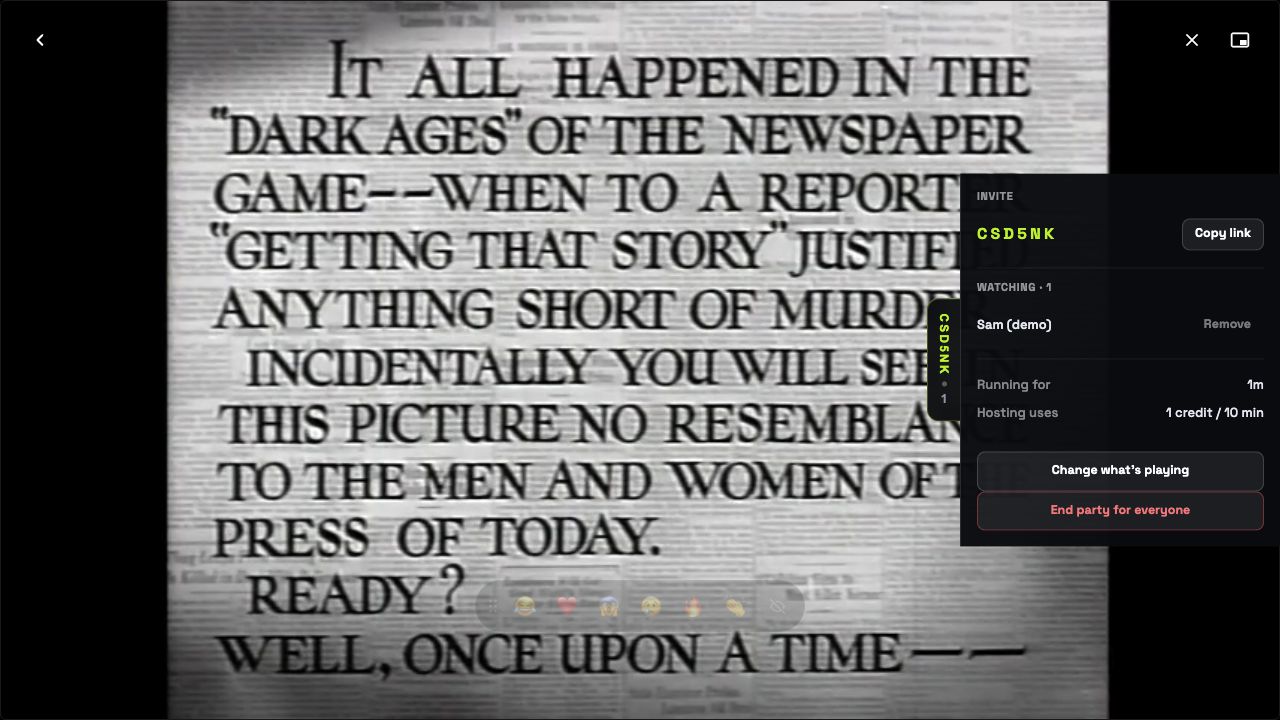
Keep the hosting tab open while you watch. If you need to reconnect, confirm that both people are back on the same scene before continuing. If the source still won’t play for one person, switch to your backup film.
5. Decide how you’ll talk
Agree whether you’ll talk throughout the film, pause to discuss a scene, or catch up afterwards. Veedeeoh has live reactions; voice, video calls and text chat need a separate app.
If you keep a call open, headphones help prevent the film’s audio feeding back into the call. Set your call and movie volumes before the opening scene. For a quieter evening, save the conversation for an agreed break.
Before you press play
Tick these off together. The checkboxes are just for this page and are not saved or sent anywhere. You can also print the guide.
Try the setup before movie night
Use the walkthrough to check what hosting and joining look like. Then create your account when you’re ready to try a room.
See the real watch-party demo ↗Create your veedeeoh account · Hosting needs eligible Cloud access and credits; guests can join four parties a month free.